 SwipeDelete
Open Photos › Albums › Media Types › Screenshots — iOS collects every screenshot there automatically. Tap Select, drag your finger across the thumbnails to select many at once, tap the trash icon, then empty “Recently Deleted.”
Step by step
- Open Photos and go to Albums (or scroll through your collections, depending on your iOS version).
- Under Media Types, tap Screenshots.
- Tap Select in the top-right corner.
- Drag your finger horizontally, then vertically across the thumbnails: you'll select whole rows in one gesture.
- Deselect the screenshots you want to keep (documents, codes, memories).
- Tap the trash icon and confirm.
- Open Recently Deleted and delete permanently to reclaim the space.
Before you delete: save the important ones
Some screenshots hold real information: valid tickets, confirmation codes, documents. Before a mass cleanup:
- Favorite the ones to keep so you spot them instantly;
- or move them to a dedicated album such as “Documents.”
How to stop them piling up again
Right after taking a screenshot, tap the preview in the bottom-left corner, then Done: iOS lets you save it or delete it straight away. For throwaway screenshots (an address to copy, a screen to send to someone), that habit makes all the difference.
How to do it with SwipeDelete
- Open SwipeDelete and turn on the Screenshots filter in the top bar.
- Want to focus on a period? Pick a year and month.
- Swipe: left for the useless ones, right for those to keep. One second each.
- Review the Trash grid, restore if needed, and confirm.
Even without the filter, Smart Suggestions put screenshots among the first candidates in the deck.
Coming soon on theApp Store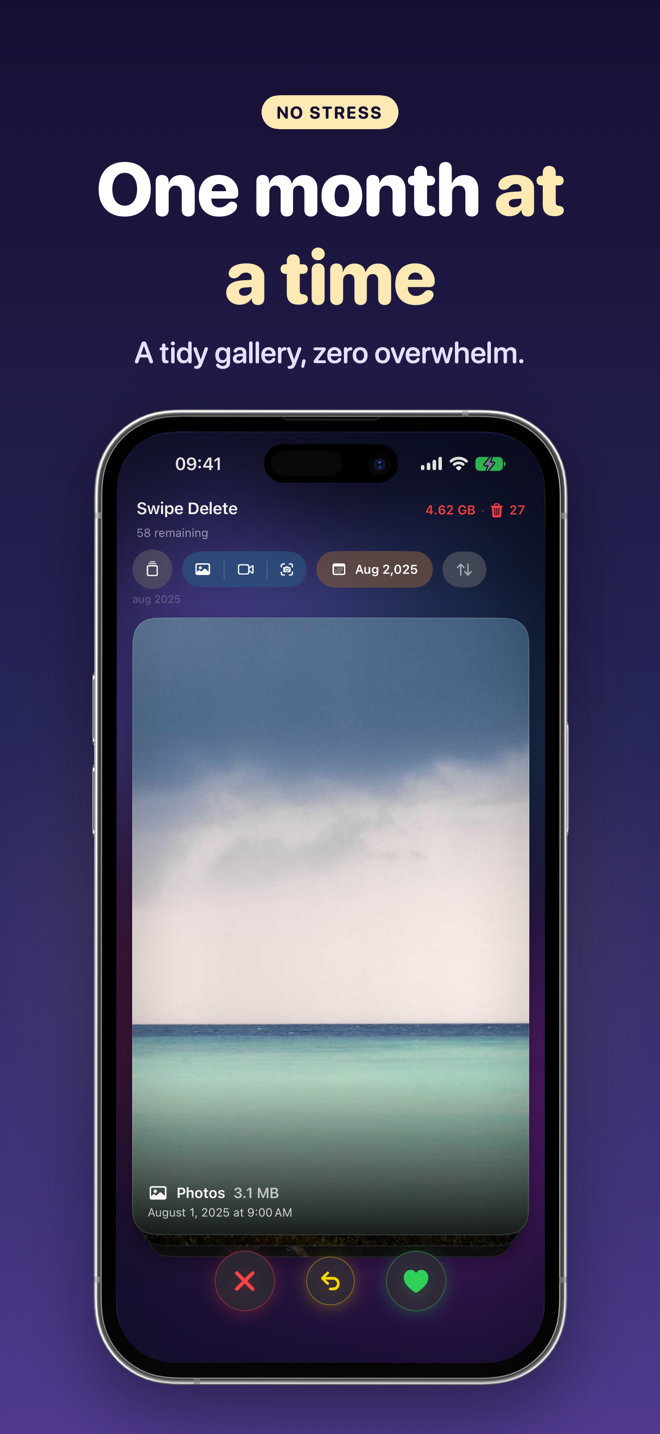
FAQ
Is there a way to delete all screenshots with one tap?
In the Screenshots album you can select them all by dragging your finger, then delete them together. Check for important ones first.
Do screenshots take up much space?
Individually not much, but by the thousands they do — and they make your library hard to browse.
If I delete them, are they gone from iCloud too?
If you use iCloud Photos, yes: deletions sync across all your devices.