 SwipeDelete
The fastest way to free up space on iPhone is to start with photos and videos: open Settings › General › iPhone Storage, check how much Photos uses, delete long videos, screenshots, duplicates and bursts, then empty the Recently Deleted album. Move on to apps and attachments only after that.
1. Find out what is really using storage
Go to Settings › General › iPhone Storage. The bar at the top shows categories (Apps, Photos, System, Messages…) and below it you'll find every app sorted by size. On most iPhones that have been in use for a few years, Photos is one of the biggest items — that's where to start.
Keep an eye on the recommendations iOS shows on this screen: depending on your iOS version, it may suggest reviewing videos or emptying recently deleted items.
2. Start with photos and videos
Not every item weighs the same. In order of payoff:
- Long videos: one high-resolution video can take as much room as a thousand photos. How to find the largest ones.
- Duplicates and near-identical shots: you usually need just one. Duplicate photos guide.
- Bursts: dozens of frames for a single moment. How to clean up bursts.
- Screenshots: tickets, receipts, chats saved months ago. How to delete them.
- Blurry or failed photos. How to find them.
3. Empty “Recently Deleted”
When you delete a photo, iOS moves it to Photos › Albums › Recently Deleted, where it stays for about 30 days — the space isn't freed until you delete it there too. Open the album, tap Select › Delete All and confirm. Only do it when you're sure: there's no going back.
4. Then move on to apps and attachments
- In iPhone Storage, tap an app you don't use and choose Offload App (keeps its data) or Delete App.
- In messaging apps, review photos and videos received in group chats — they're often copies of things you already have.
Heads-up if you use iCloud Photos
With iCloud Photos turned on, deleting a photo from your iPhone also deletes it from iCloud and your other devices. If you only want to reduce local storage without deleting anything, turn on Optimize iPhone Storage in the Photos settings.
How to do it with SwipeDelete
SwipeDelete turns step 2 into a few minutes of swiping:
- Open the app and allow Photos access — the analysis happens only on your iPhone.
- Start with Smart Suggestions (screenshots, near-duplicates, bursts, low-quality shots) or sort by size.
- Swipe left to delete, right to keep. Undo your last decision with one tap.
- Open the Trash, restore anything you want back, and confirm — iOS asks one last time.
The lifetime freed counter shows your progress, session after session.
Coming soon on theApp Store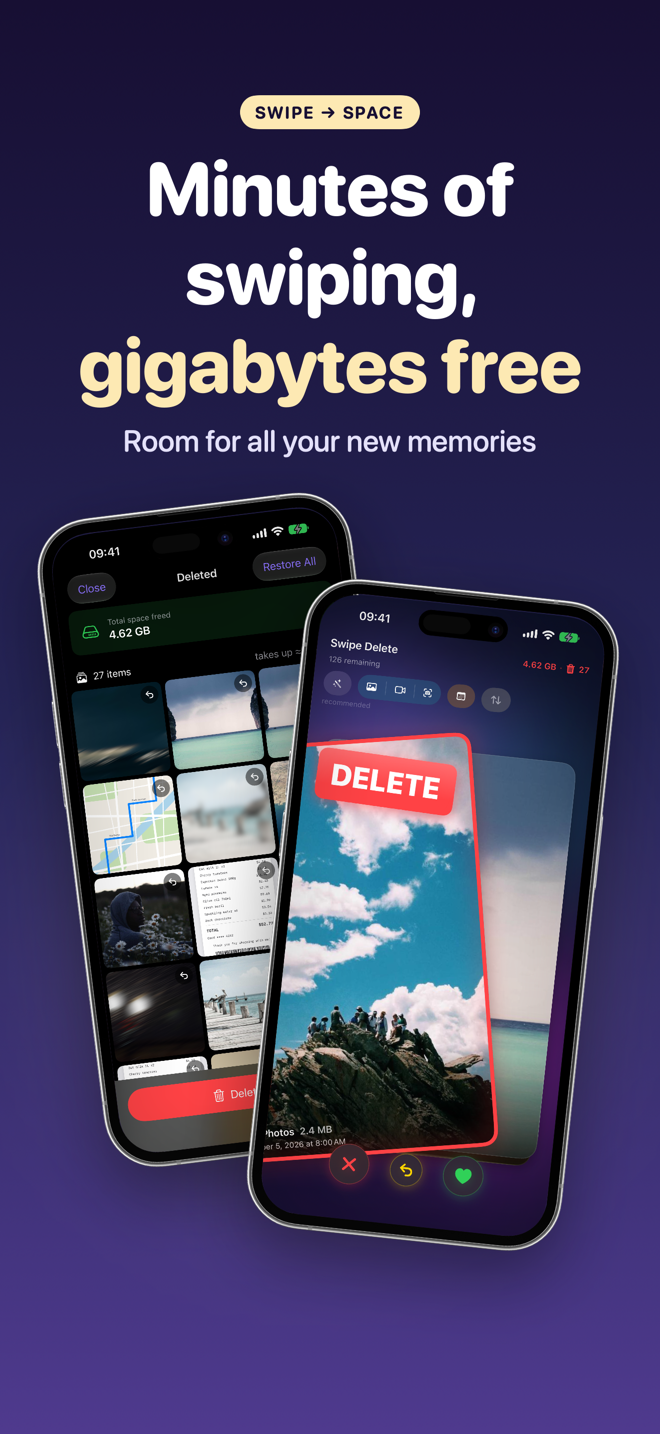
FAQ
Why didn't my storage go up after deleting photos?
They're still in “Recently Deleted.” Empty that album to get the space back right away.
How much free space should I keep?
There's no official figure, but leaving a few gigabytes free helps iOS updates, new photos and videos go through smoothly.
Does deleting photos harm my iPhone?
No. Deleting items from the library is a normal iOS operation.